



NIC works with Technical Resource Providers (TRP) to create resources. Sometimes, large files need to be shared between NIC and the TRPs and the NIC File Drop provides the functionality to do so.
Upload Limits
As of the time of this writing, File Drop is limited to 500Mb single file uploads. If you need to upload a bunch of images or larger videos, we ask that you contact the NIC Information Center Web Developers for alternative upload options - do so by asking your NIC contact for the web developers' information.
Warning
Files uploaded here are only for work being performed between a Vendor and NIC or NIC and its students. Any files that are not directly related to these two functions will be removed and sanctions may be placed on the person who uploaded the files in violation.
Begin on the My Account page, You can always get to it by clicking the My Account link in the upper right corner of the website once you're logged in.
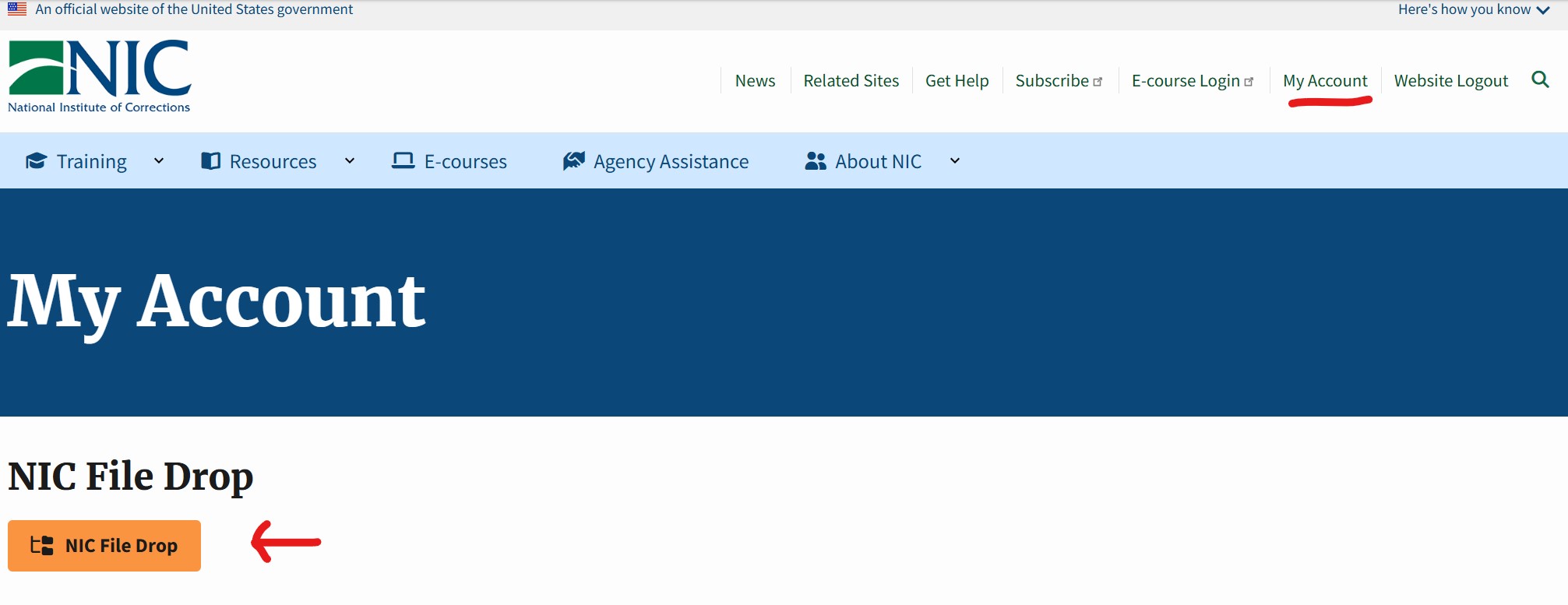
To access the File Drop (file share area) you can click on the orange NIC File Drop button.
This will take you to a screen that looks like the one below:
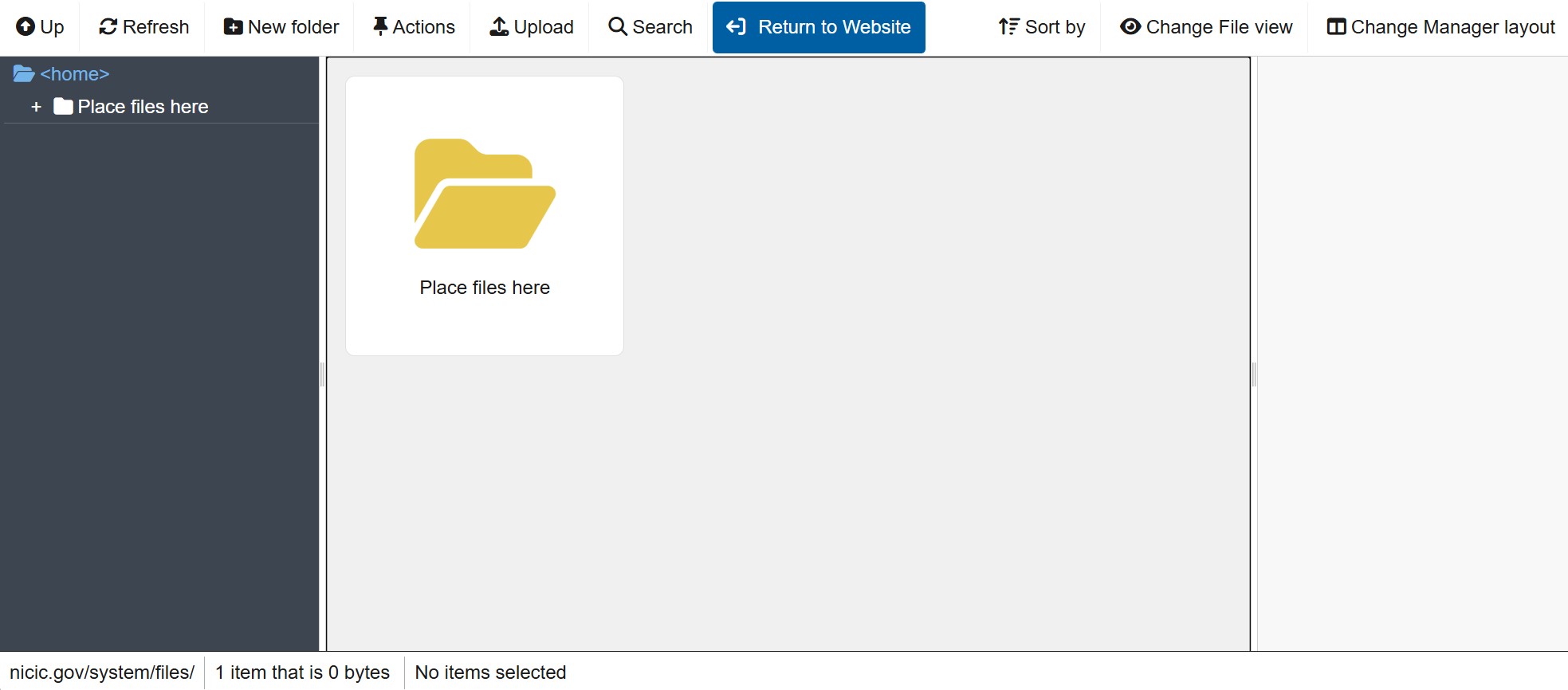
Please take note of each of the buttons, especially the Actions menu and Right Click menu.
Top Row Buttons:
These are the buttons available at the top of the screen
Up
The up button moves the current view one level up in the file tree on the left side of the screen. If you are not able to go any higher, it will stop at your root folder level known as <home>
Refresh
Refresh will force the page to update in the event that you made any file changes (uploads, moves, deletions) that have not been reflected in the display. After clicking refresh, you should see the current state of the file tree on the left and the status of files in the central section of the page.
New Folder
Allows you to create a new folder and name it.
Actions / Right Click Menu
The Actions dropdown will change based on what you have selected in the central area of the page. This menu can also be activated by selecting one or more files in the central area and the performing a right click with your mouse.
Nothing Selected - Options:
- Select All - selects all files and folders in the current folder.
- Paste - Will move a Cut file from its previous location to the current folder location.
Folders or Files Selected - Options:
- Open - opens the folder or attempts to open the file in another tab or downloads it to your computer if previewing in the browser is not possible.
- Delete - Deletes the currently selected files or folders.
- Cut - Cuts the selected file or folder. Navigate to a different folder to paste/move the file/folder to that location.
- Copy - Creates a duplicate.
- Rename - Renames the currently selected file or folder
- Download - Downloads the files or folders to your computer
Upload
Allows you to upload files to the current folder. More than 1 file may be uploaded at a time, but no individual file can be over 500Mb in size. Please note, if you are uploading large files or a large amount of files, please contact the NIC Web Developers for alternative upload options.
Search
Search for file names within the current directory structure.
Return to Website
This button returns you to the NIC Website, leaving the File Drop.
Sort By
Allows you to change the sort order of the files in the view.
Change File View
Changes the center column from Card view to List view and back.
Change Manager Layout
Changes whether the right and left columns in the central area are displayed.
Main Area:
Left Column
This is the Folder Tree directory. Just like in your computer, it shows where you are currently located.
Center Column
Shows the contents of the current directory.
Right Column
Shows details about the currently selected file(s).
Bottom Bar:
Current Location folder path
The left-most side of the bar displays the current folder path in case you need to tell someone where a file is located. You can copy this path and send it to them.
Currently Selected Item(s) information
Tells you the current directory's item count and total file size. Also shows the currently selected item(s) file size.