


Learning History and Certificates
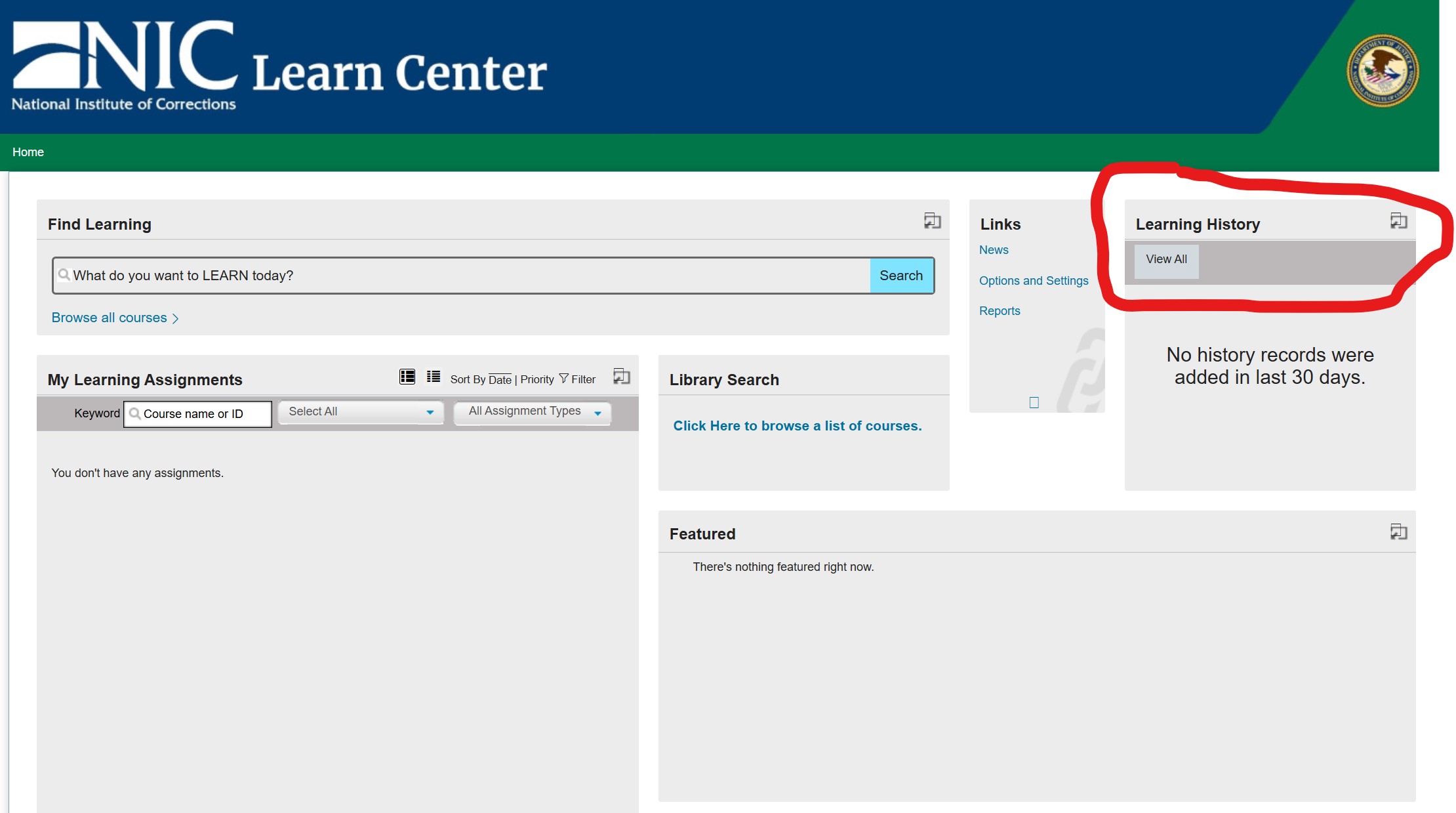
On the Learner Dashboard page, immediately after login, you can click the View All link under Learning History to view a record of your course completions and certificates.
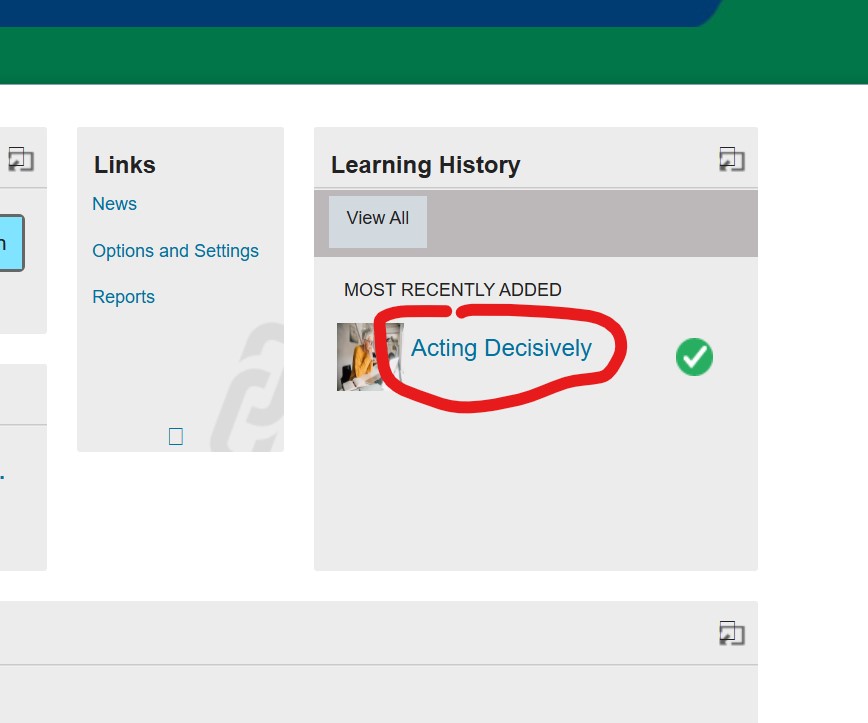
Alternatively, if you see a recently completed course in the list on the dashboard, you can click on the title of that course to get to the certificates page.
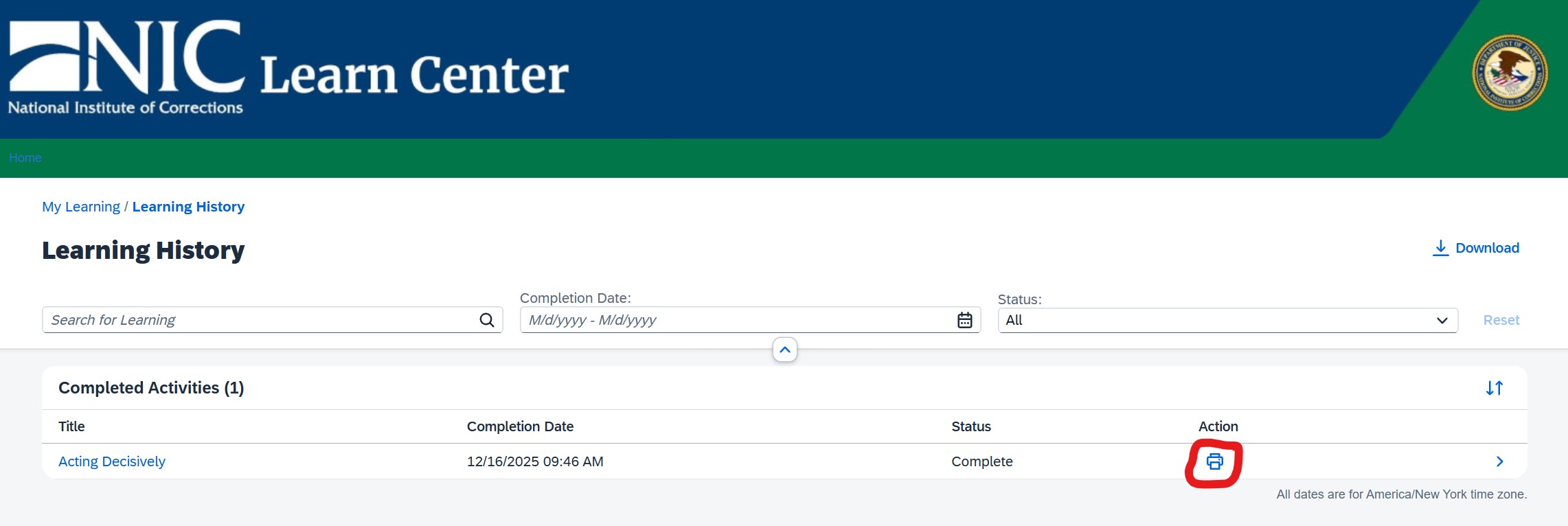
Once on the Learning History page, you can use the filters at the top to narrow down your learning history. You can also click on the Print icon to see your certificate.
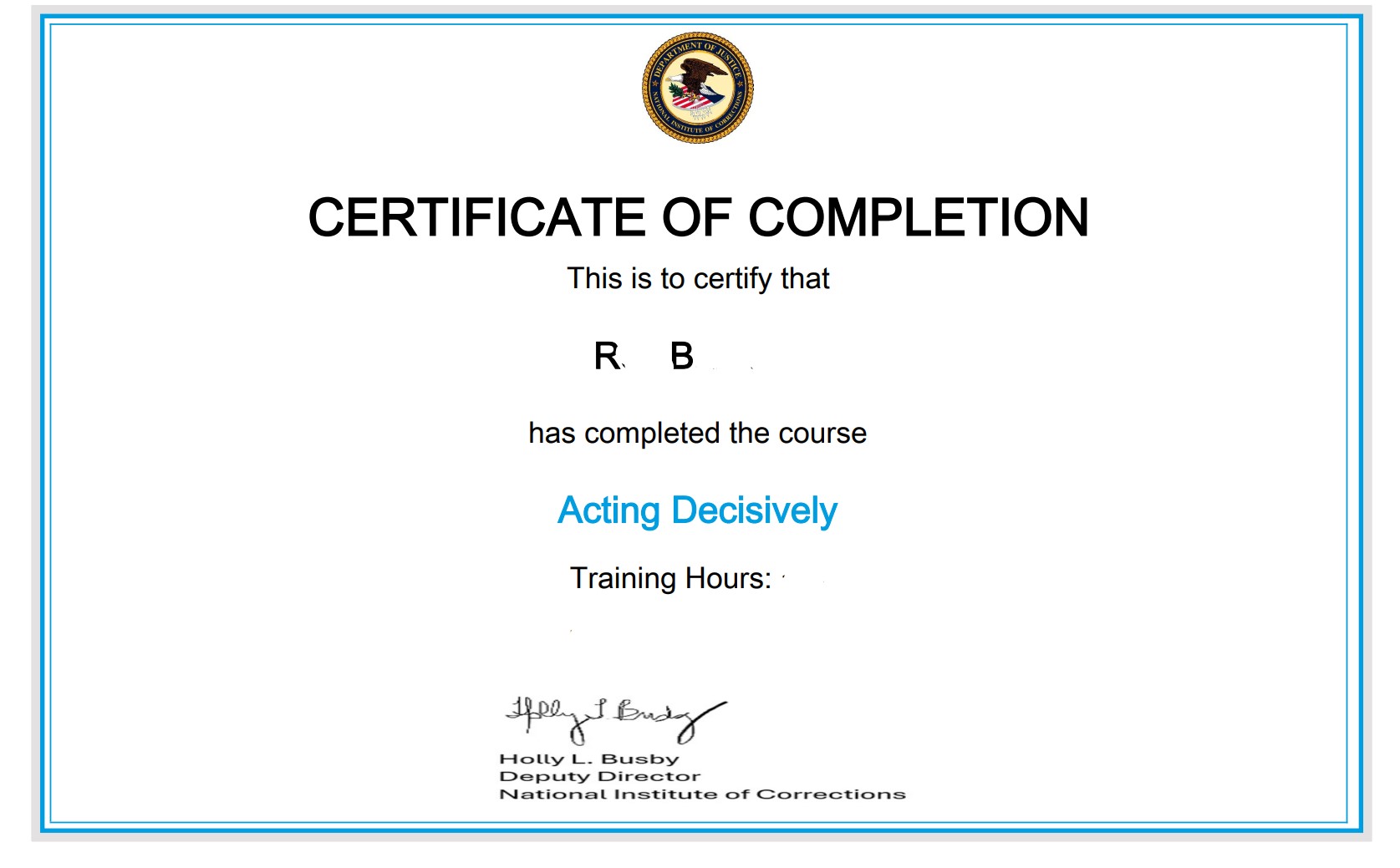
Certificates will look similar to this and are served in PDF format.
Survey and Certificate at the end of a course
Step 1: The Survey
After completing the course, you must close that pop up window where you took the course. To do this, after completing any final exams, click the "Log Off" button in the upper right corner. This will then return you to the initial 'My Learning' page for the course you were taking back in your main browser window.

On the course content page, find the Survey link in the left Content menu. Click on 'Survey', then look in the content area on the right and click the blue 'Take Survey' button. This will launch a new popup.
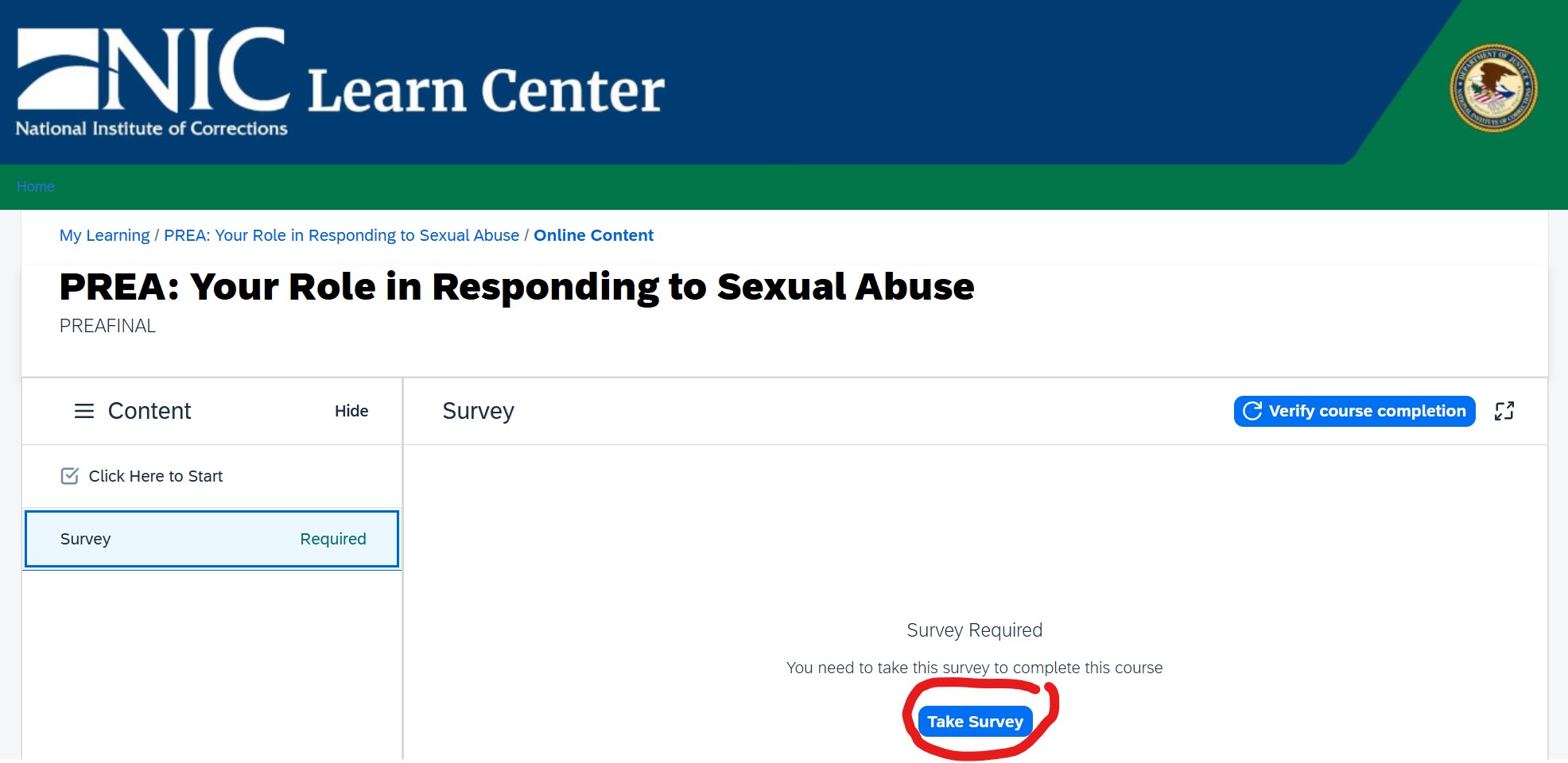
The survey will look something like this:
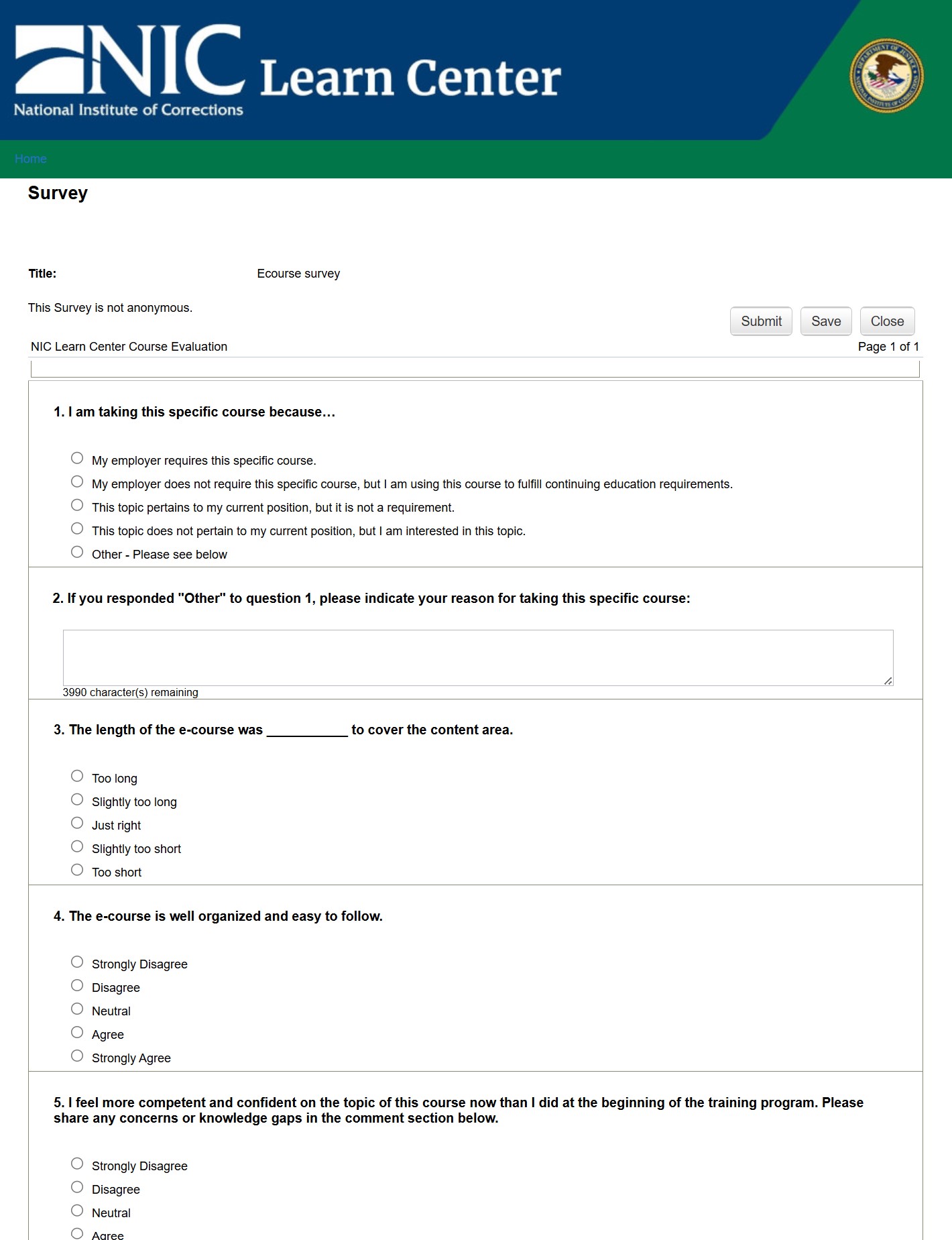
- In the popup, complete the 5 question survey. Then, at the bottom of the questions:
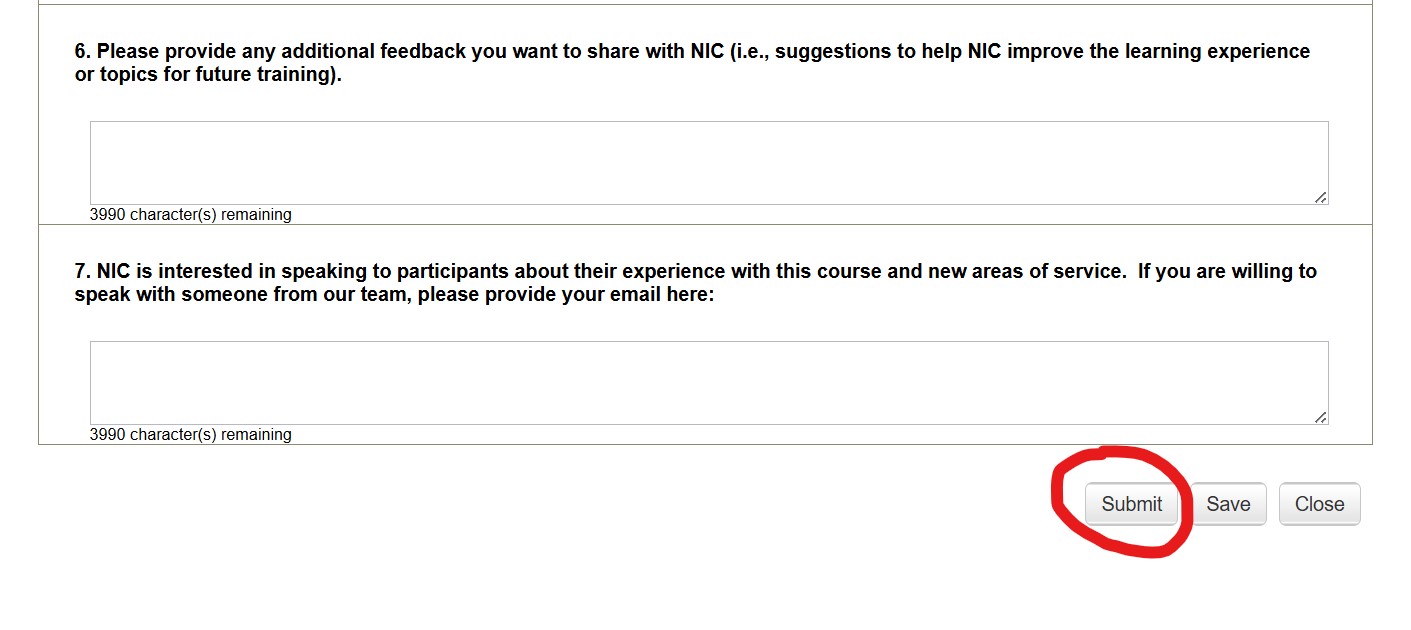
- The "Save" button simply saves your answers, but keeps the survey open.
- The "Submit" button saves your answers and closes the survey, allowing you to get access to your certificate (see Step 2 below).
Step 2: Obtaining the Certificate
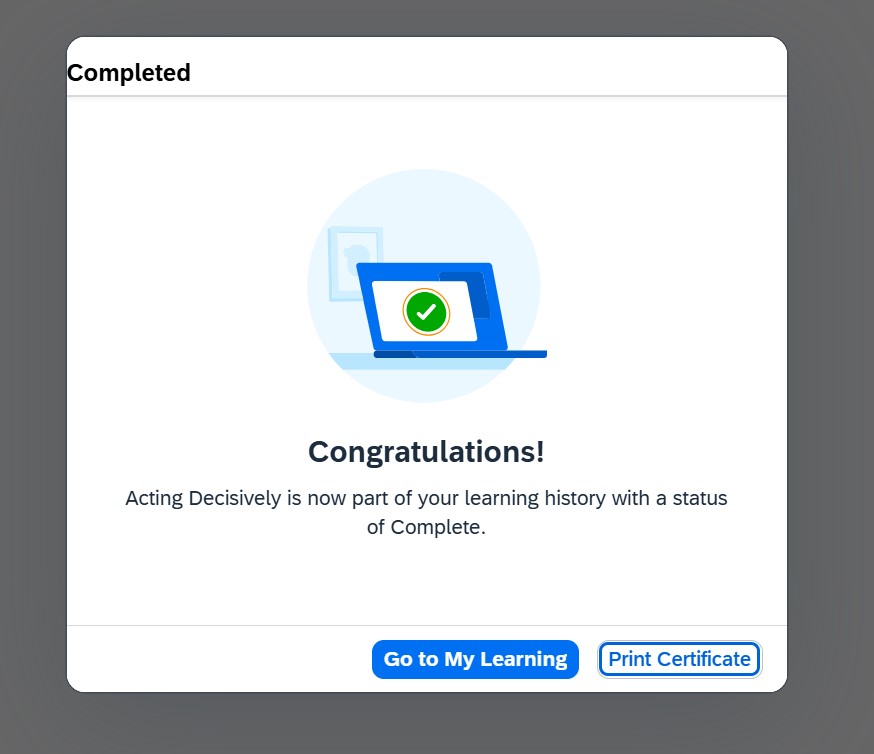
Once you have completed a course (and survey), you will be presented with this popup. You may click the "Print Certificate" button to view your PDF certificate of completion.
Certificates will look similar to this and are served in PDF format.