


Getting Registered:
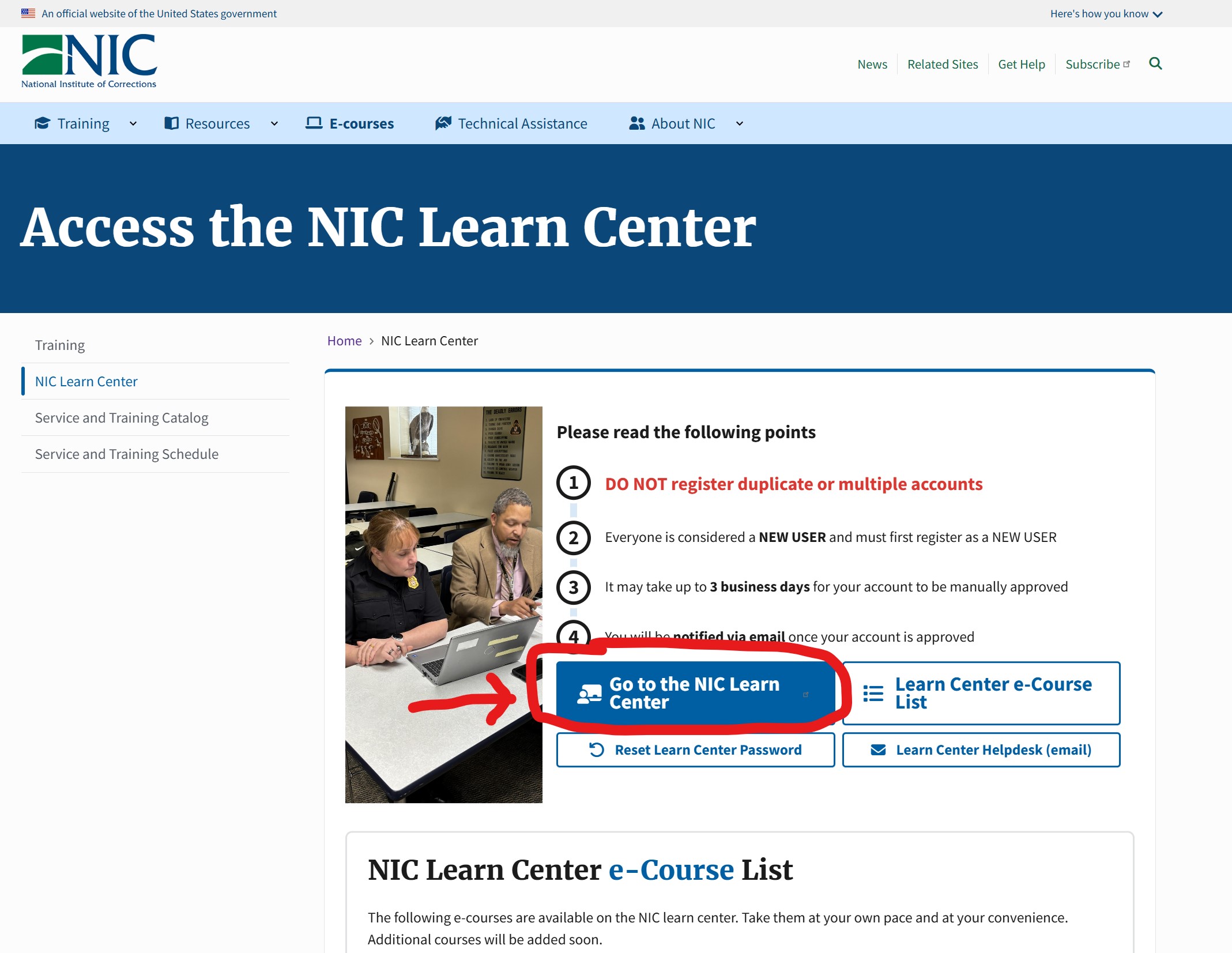
- Visit NIC's Learn Center (https://learn.nicic.gov) and click the blue button that says "Go to the NIC Learn Center"
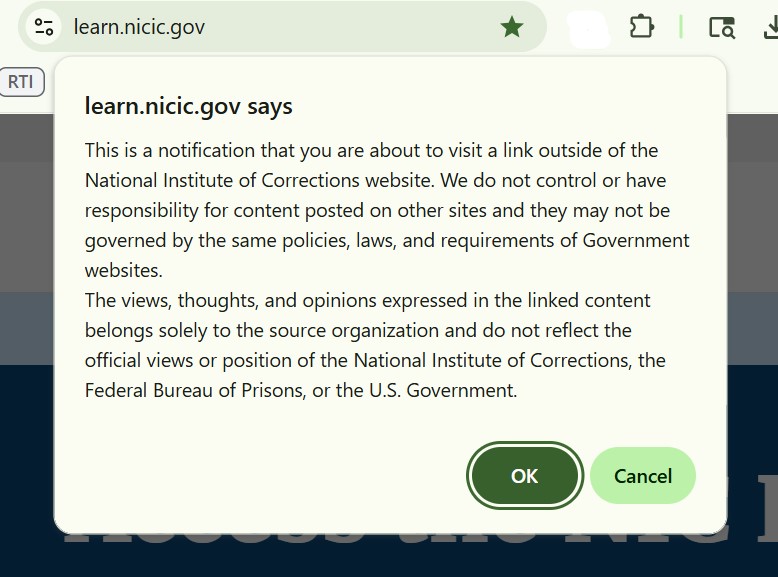
- Click the OK button on the notification popup that you are leaving NIC's main website.
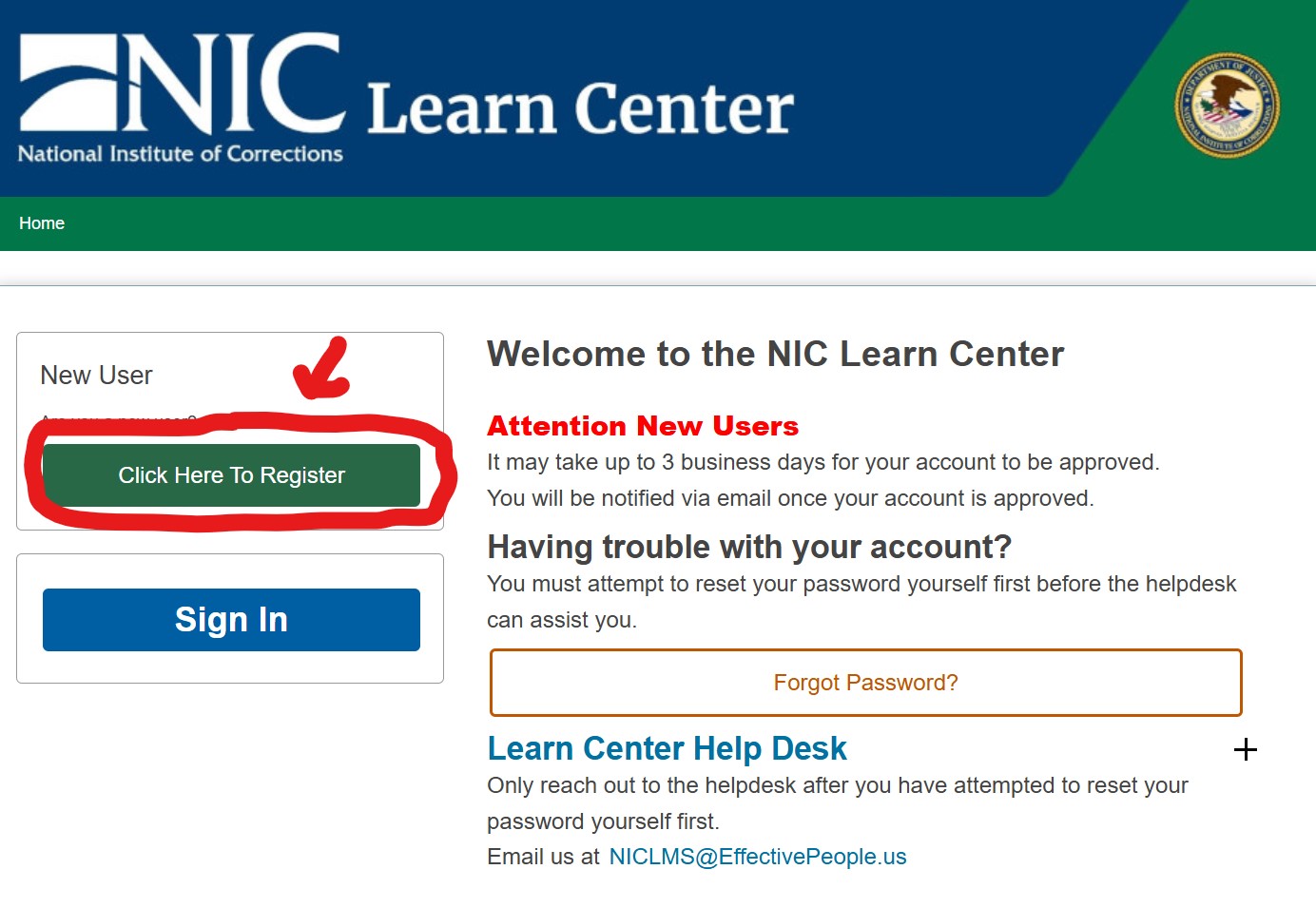
- You will arrive on the NIC Learn Center Home page where you can:
- In the left column, near the top, click the green button that says "Click Here to Register" (shown in the image above).
- Please make sure you understand the privacy statement and fill out the form below it with your required information.
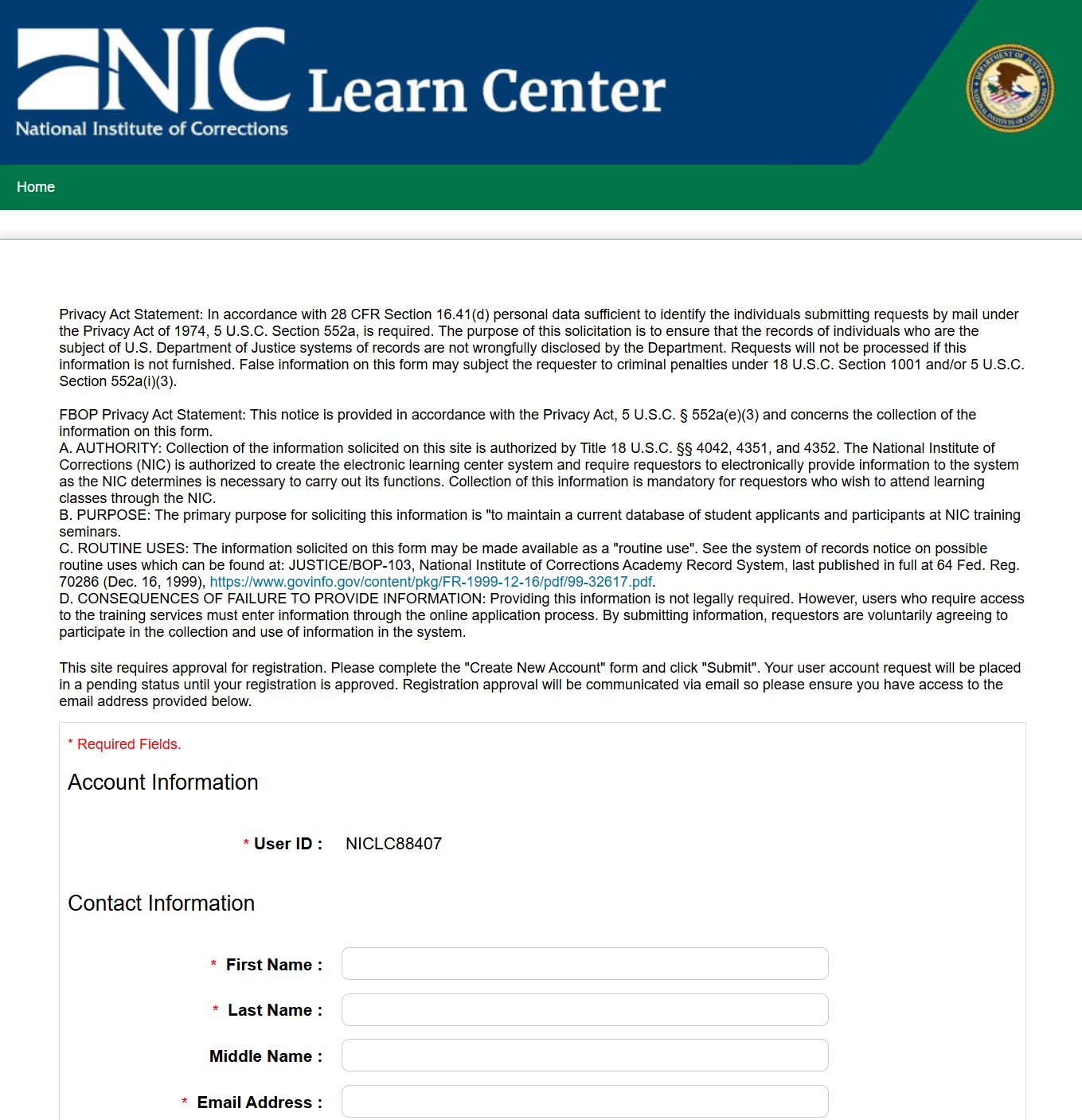
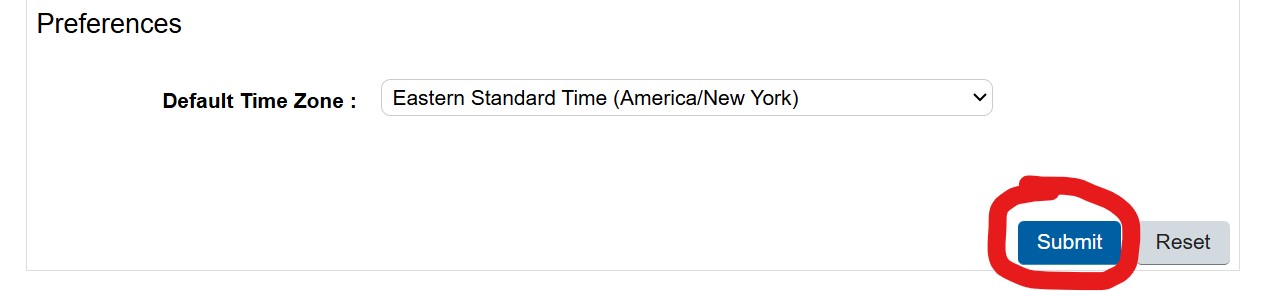
- Click on the blue Submit button at the bottom of the page.
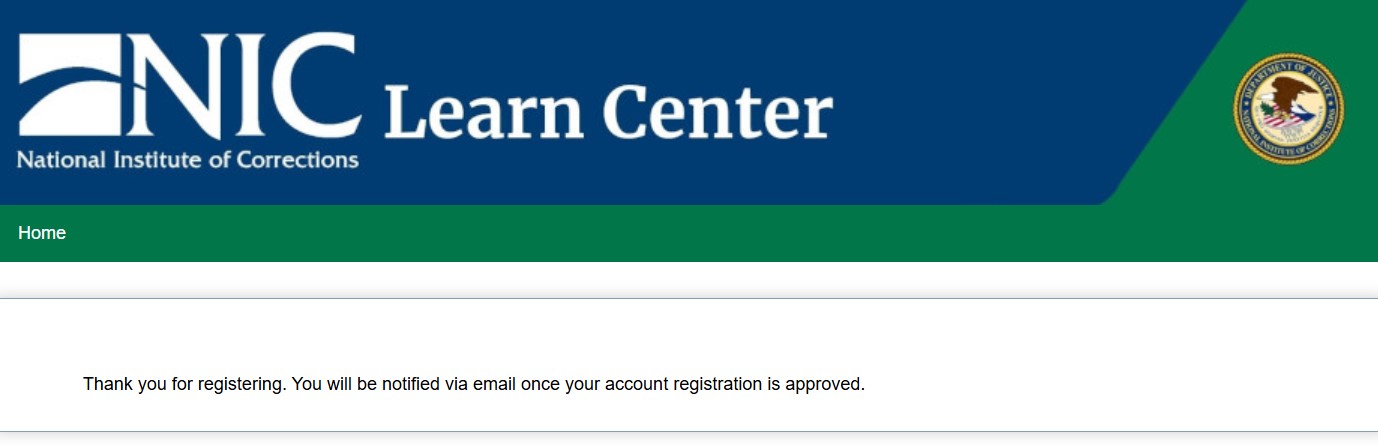
- You should see an affirmation message that your information was submitted.
Activate your account
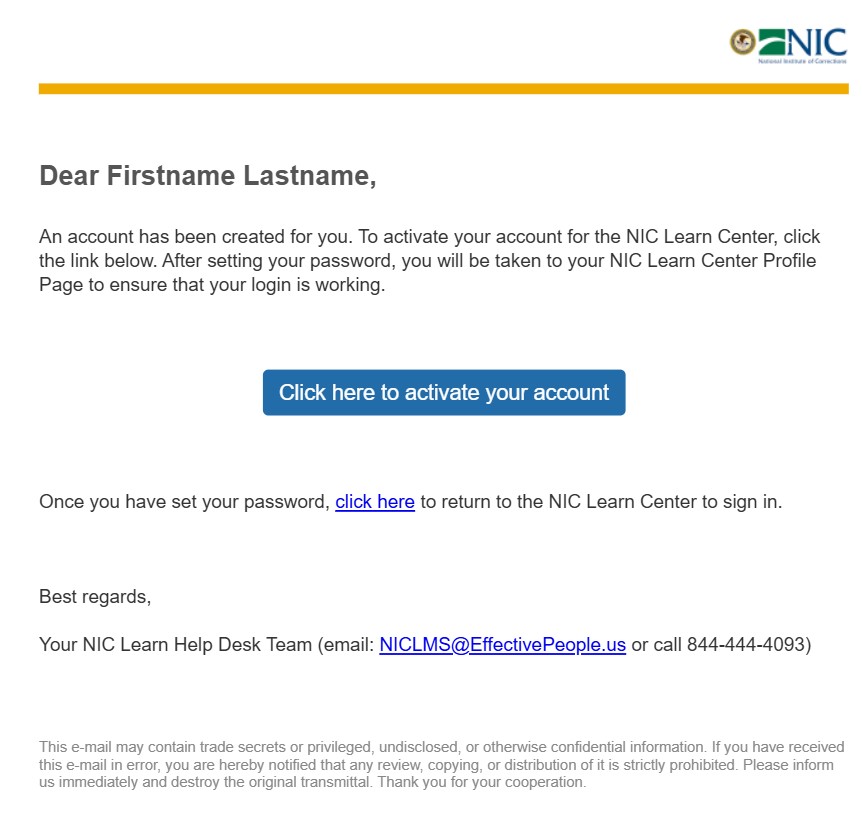
Once you submit your application, it will be reviewed within three business days. If approved, you will receive an email from noreply-scp-cre@sapns2.us asking you to click a link to activate your new account.
When you activate your account, you will be prompted to setup a password and two-factor authentication.
If you are accessing the Learn Center as part of a training program, please notify your NIC staff member and/or facilitators that you have registered an account on the NIC Learn Center.
3 Business Days
Look for this activation email in your inbox or spam/trash folders:
TIME SENSTIVE: YOU MUST complete click the activation link within 24 hours of receiving the email of your account creation.Additional Details:
Upon submitting a new user request the registration approval status is retained into a pending status until the request is reviewed by the approval authority verifying the requestor is mission related to the occupation of corrections, law enforcement or in some sort of support role.
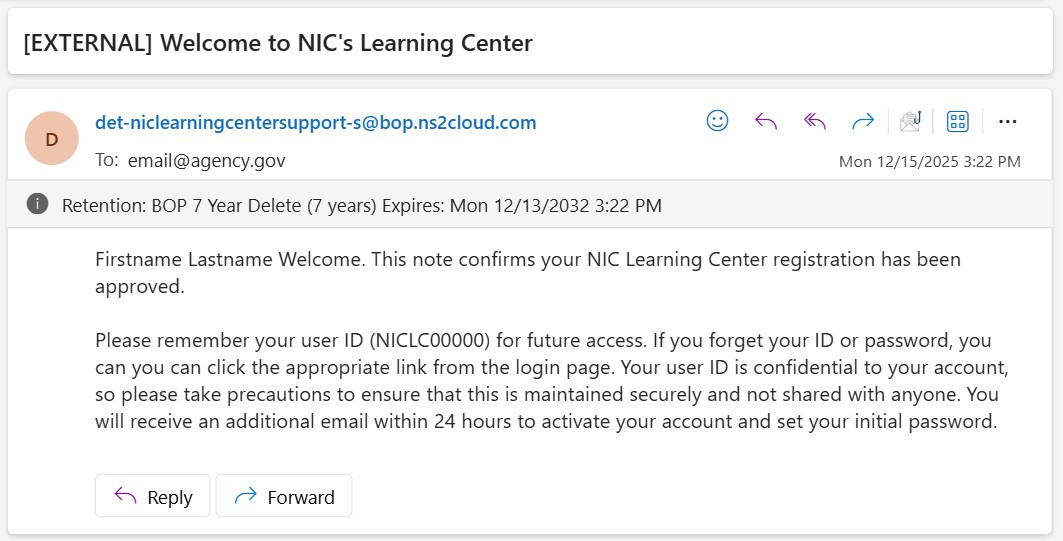
Registration approval is communicated via an account activation e-mail through automated processes from the LMS within 3 duty days.
Once the requesting user receives an account activation e-mail from the system, the user is prompted to set up a 16 character password with unique characters as well as 2-factor authentication.
Account requests that are denied must contact the helpdesk (noreply-scp-cre@sapns2.us) for reconsideration.
Account Activation Email:
Account Registration Approval email from det-niclearningcentersupport-s@bop.ns2cloud.com:
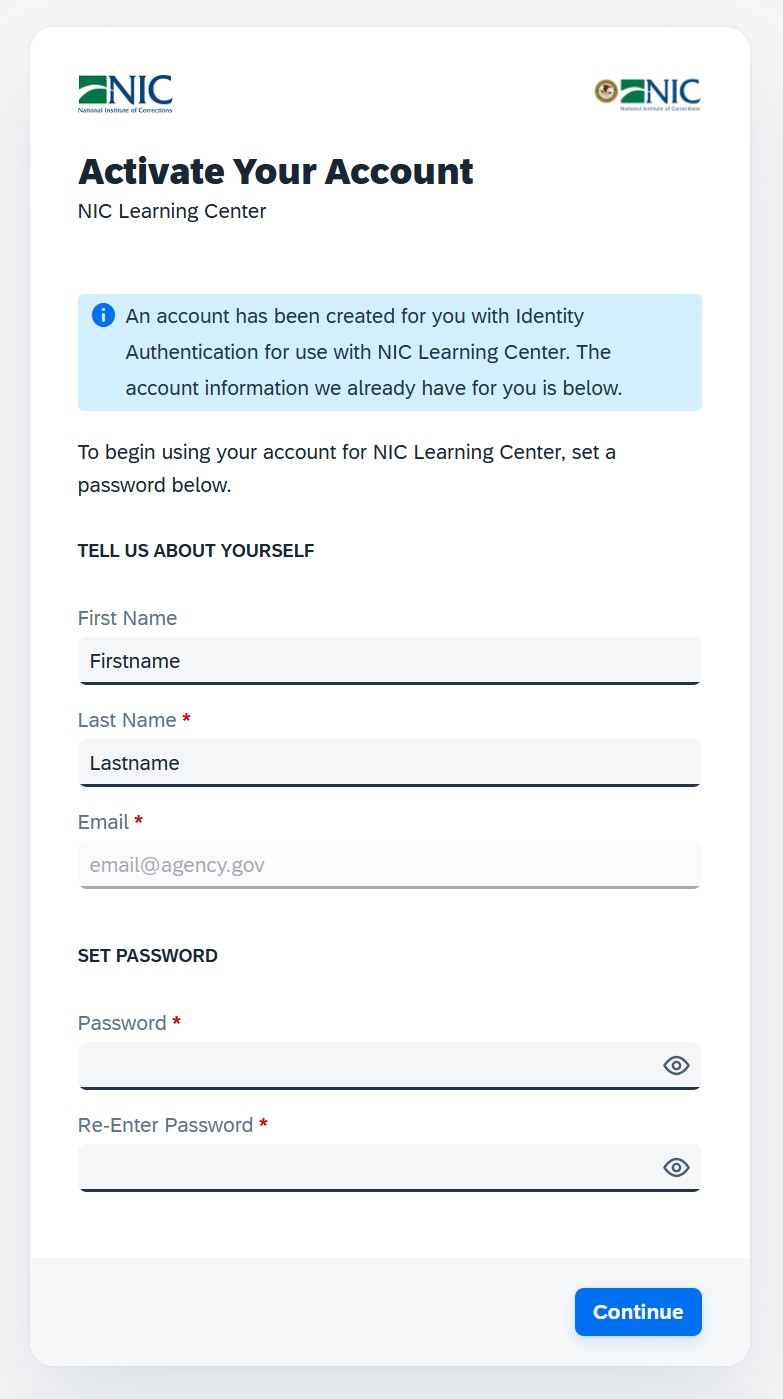
When you click on the Activate Account link from your email, you will be taken to this "Activate your Account" form. Some of your information should already be entered. Please create a password you can easily remember, enter it a second time, then click the blue Continue button at the bottom of the page.
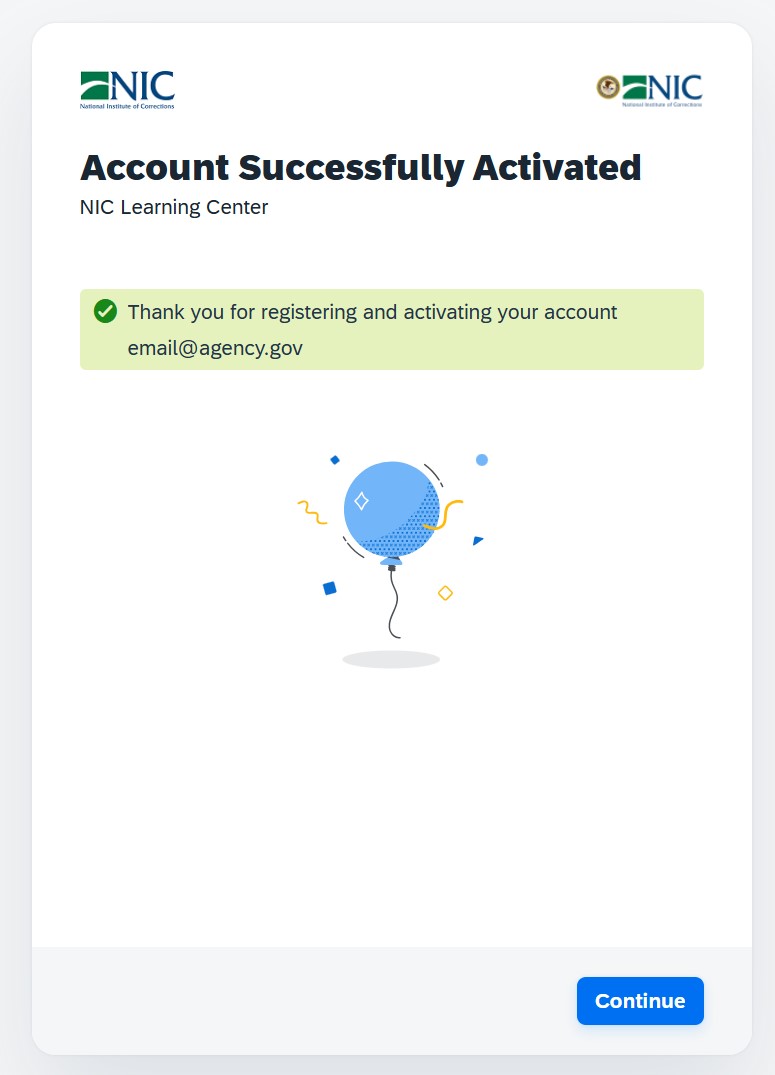
Once you have created a password, you will receive this confirmation message.
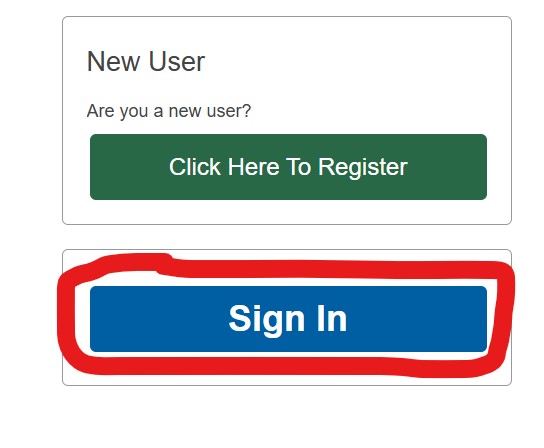
- Once you have activated your new account, return to the NIC Learn Center and click on the blue button that says "Sign in" on the Learn Center landing page.
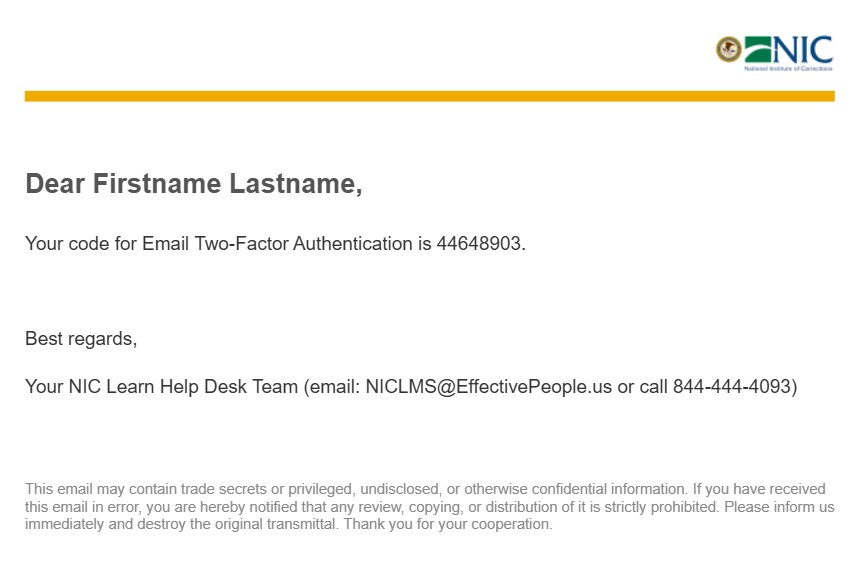
- Log in with the email and password (account information) you set up. You will also need to check your email for a Multi-Factor Authentication Code Email from the address: noreply-scp-cre@sapns2.us.
Screenshot of the Learn Center Login form
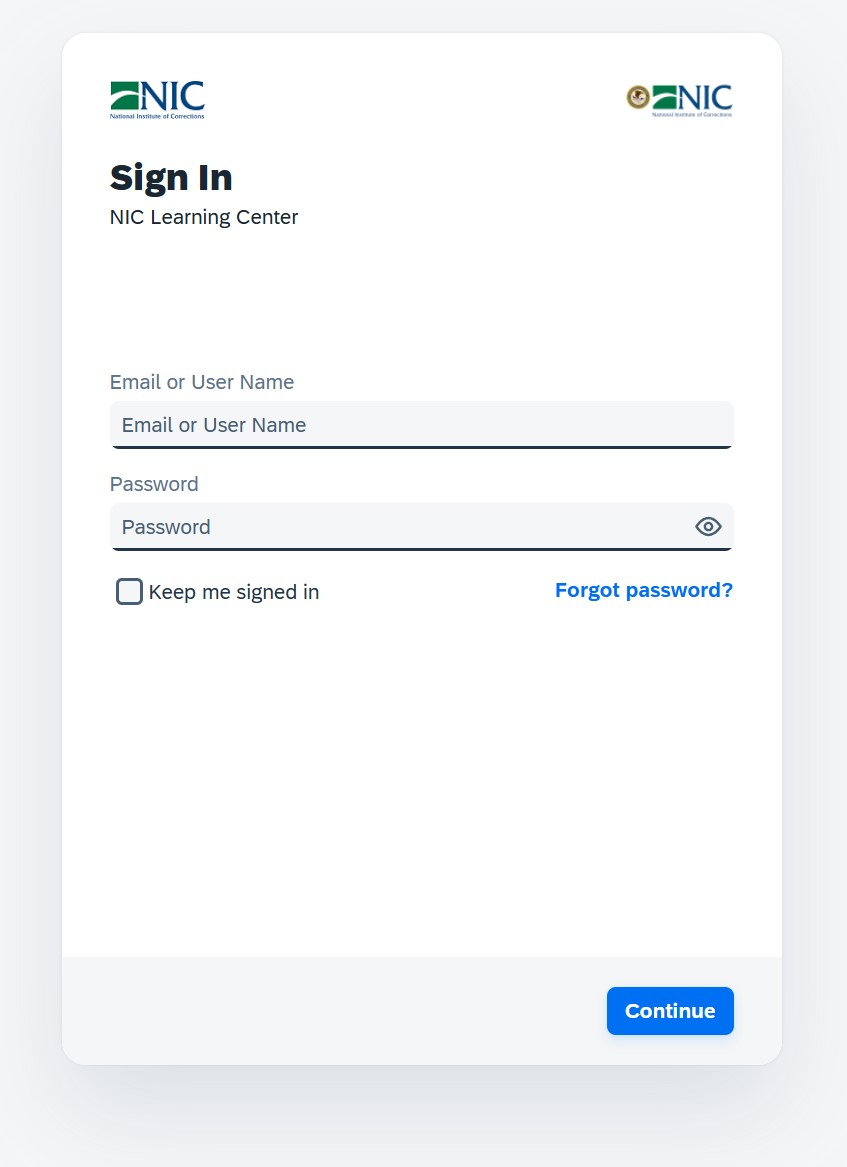
Check your email for a MFA Code email each time you log in.
Using the Learn Center
- In the library search, enter the course names you are looking for and start each course.
- Complete the course and take the test at the end.
- On the Learn Center Dashboard, find the Learning History block, find the completion you are looking for. Print the certificate, and send it to your NIC Trainer and/or facilitator.
From there, you will be logged into the NIC Learn Center and see this notification, which you can clear by clicking the light blue Continue button in the lower right corner.
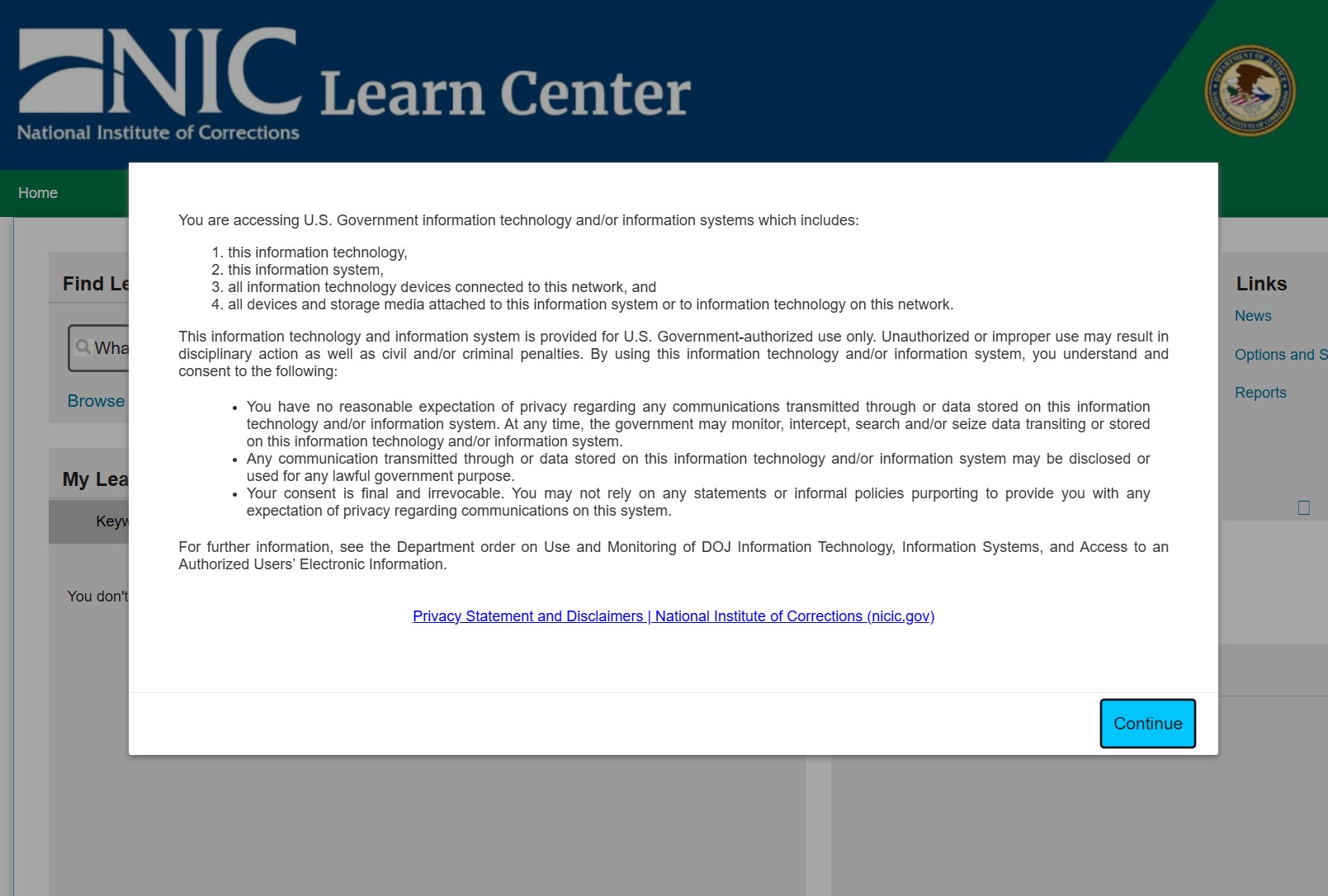
From there, you will be logged into the NIC Learn Center and see this notification, which you can clear by clicking the light blue Continue button in the lower right corner.
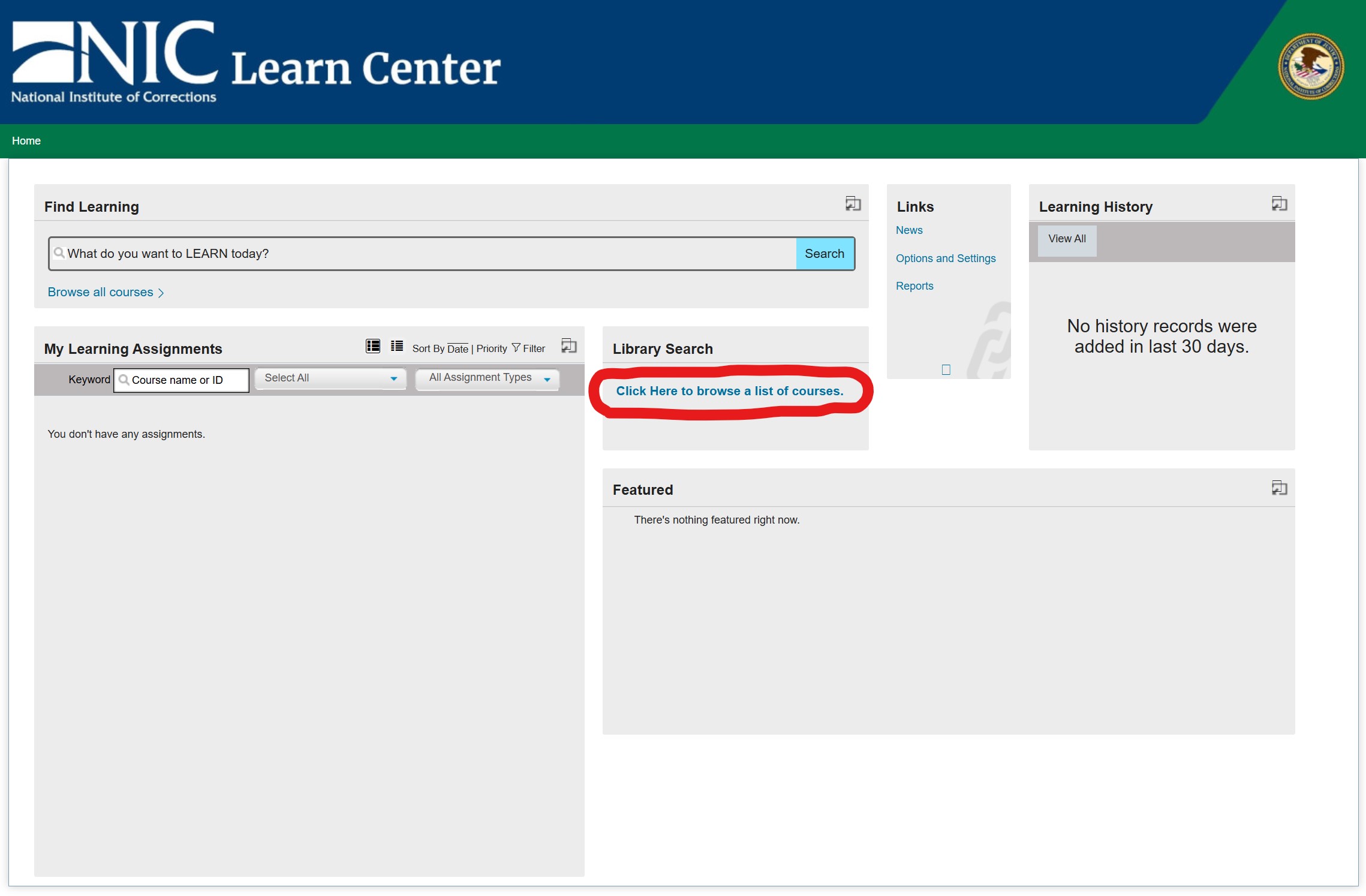
After clicking the link, "Click Here to browse a list of courses." you will be taken to a page that lists all courses in the NIC Learn Center.
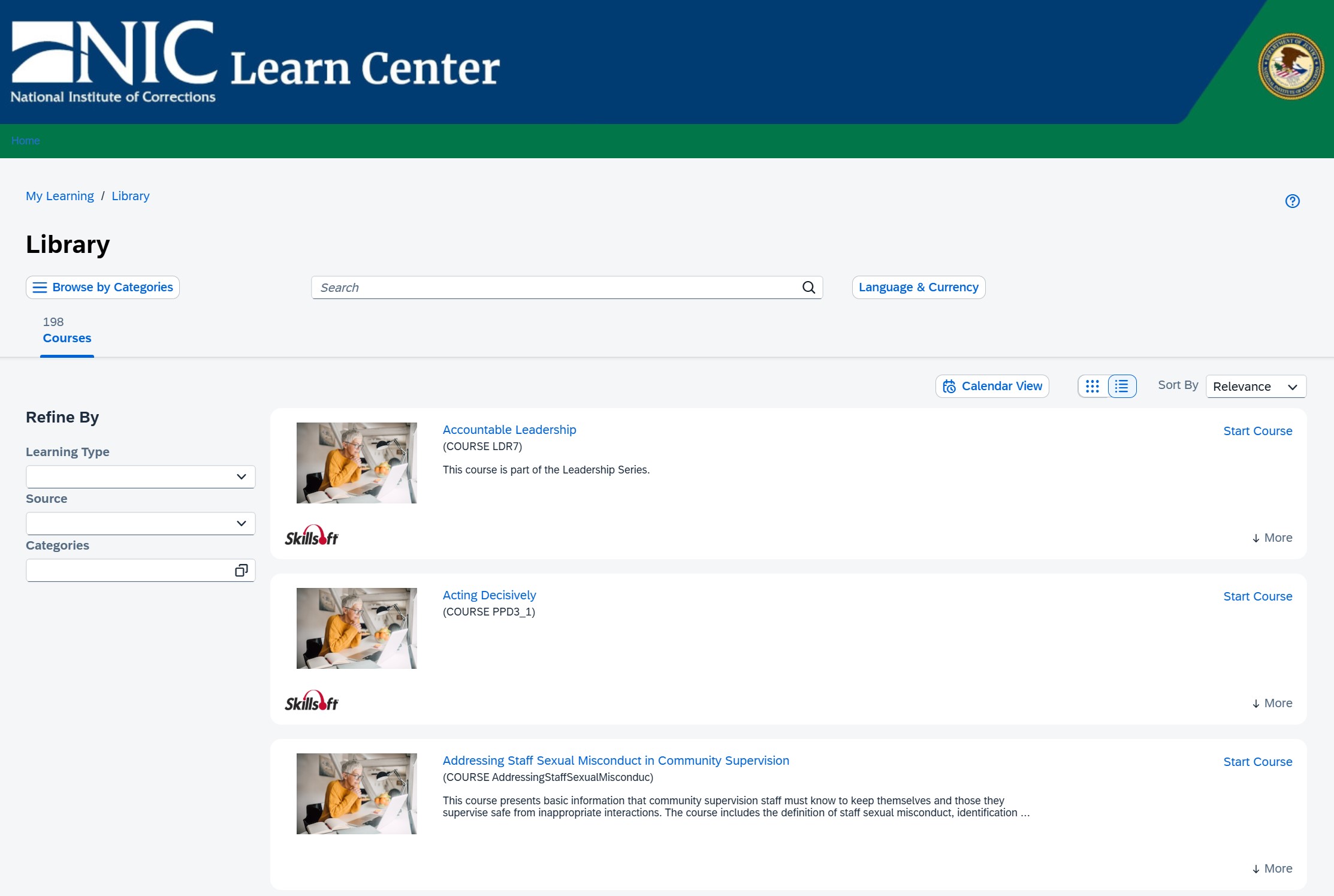
You may choose to click on a course title to see a page with a little more info about each course.
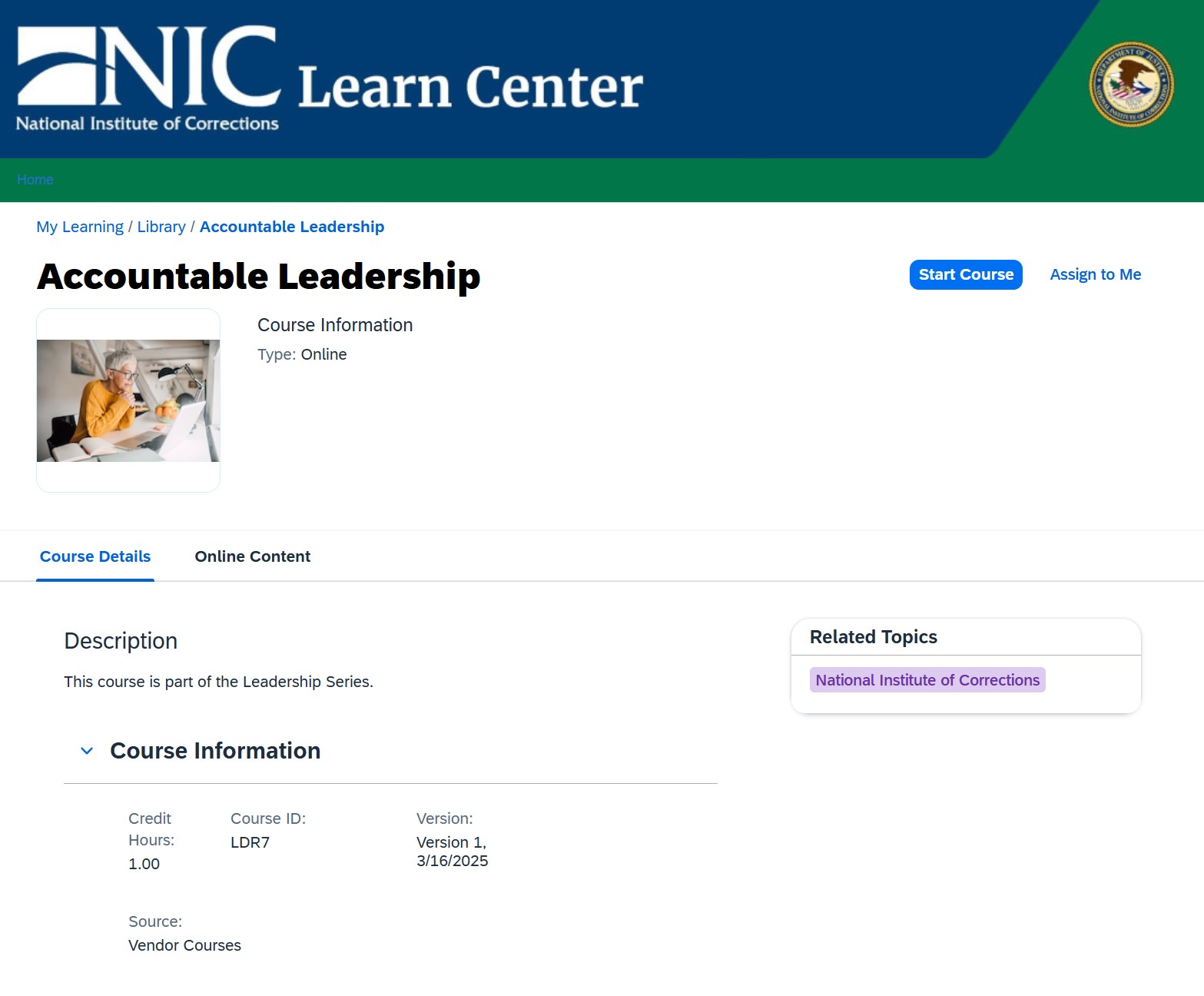
Learning History and Certificates
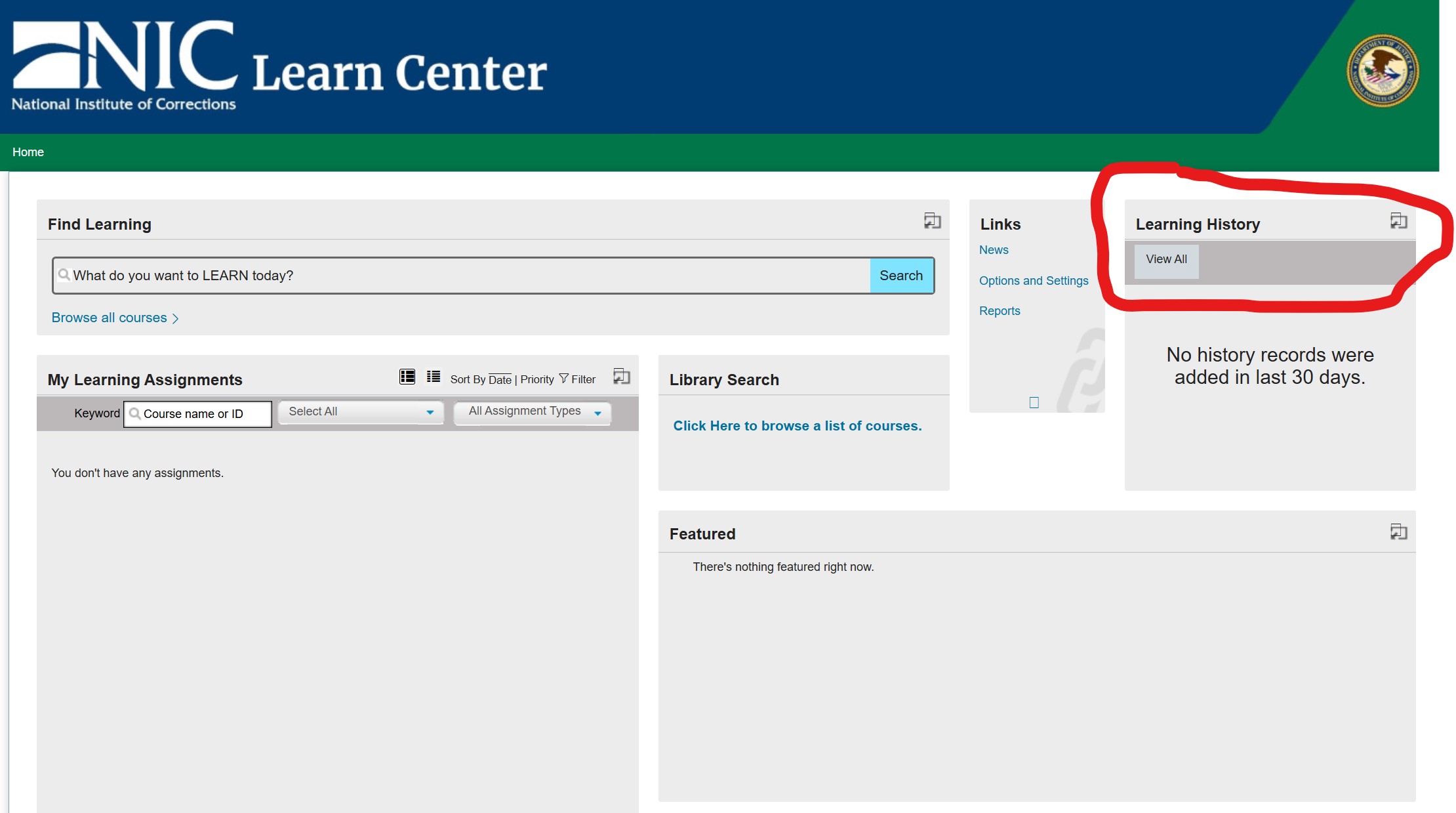
On the Learner Dashboard page, immediately after login, you can click the View All link under Learning History to view a record of your course completions and certificates.
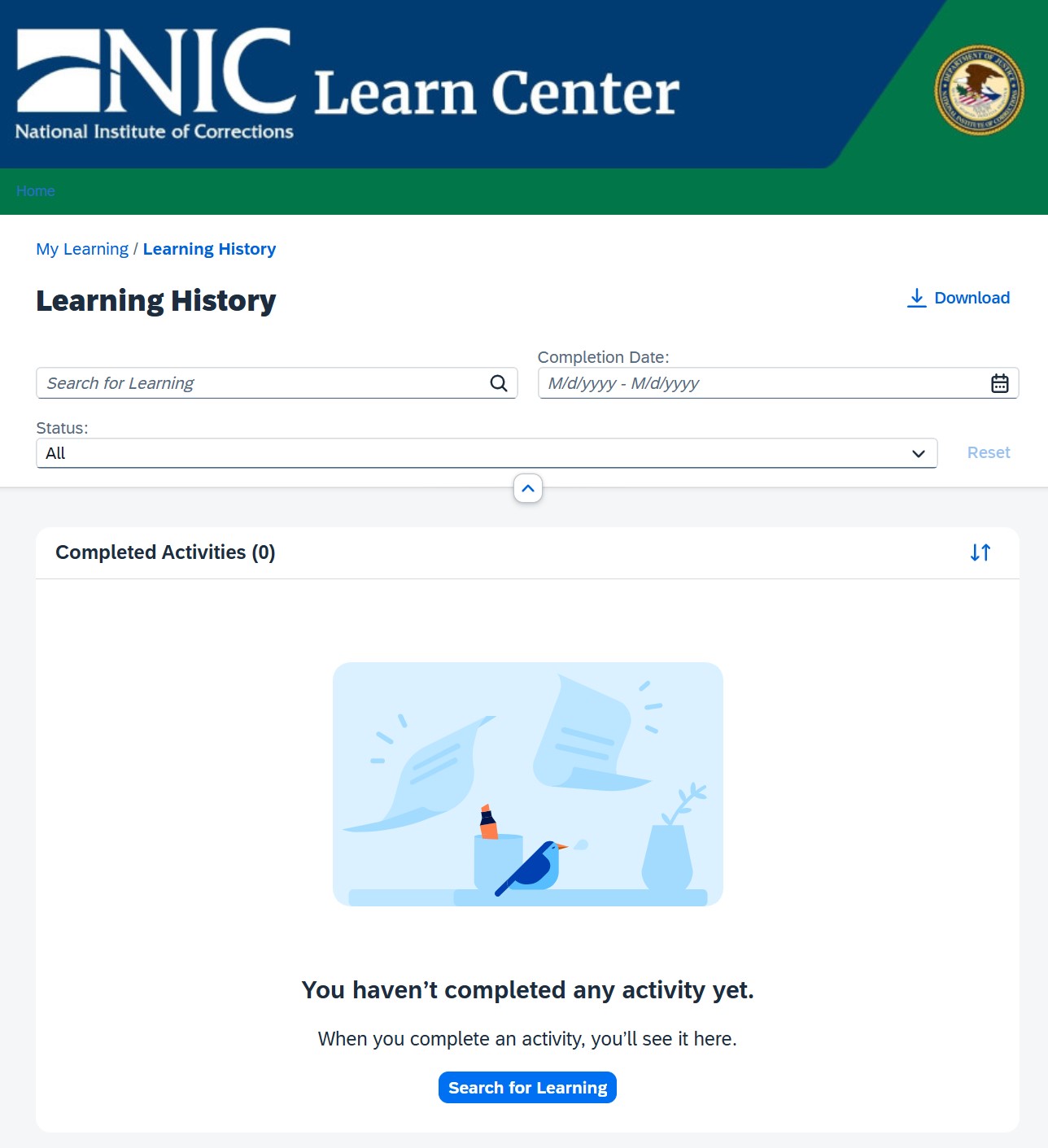
Once on the history page, you can use the filters at the top to narrow down your learning history.
- Created:Updated: